

Series What our ecommerce clients ask us most · Part 7 of 9
- Shopify Ecommerce Checkout Optimization: 6 Strategies to Increase Conversions and AOV for your Shopify Store
- Shopify Tools and Apps That Turn Checkout Friction Into More Sales
- GA4 for Shopify: How to Set It Up, Test It, and Avoid Duplicate Tracking (Beginner's Guide)
- Shopify: Increase Product Page Conversions with Product Groups Swatches
- Shopify Combined Listings: The Complete Guide (2026)
- Best Shopify Combined Listings Apps in 2026: 11 Apps Compared on Price and Features
- Shopify Product Variants: The Complete Guide (2026)
- Shopify Variant Limit: 2,048 Variants, 3 Options, and How to Get Around Them
- Shopify Color Swatches: How to Add Them, With or Without an App
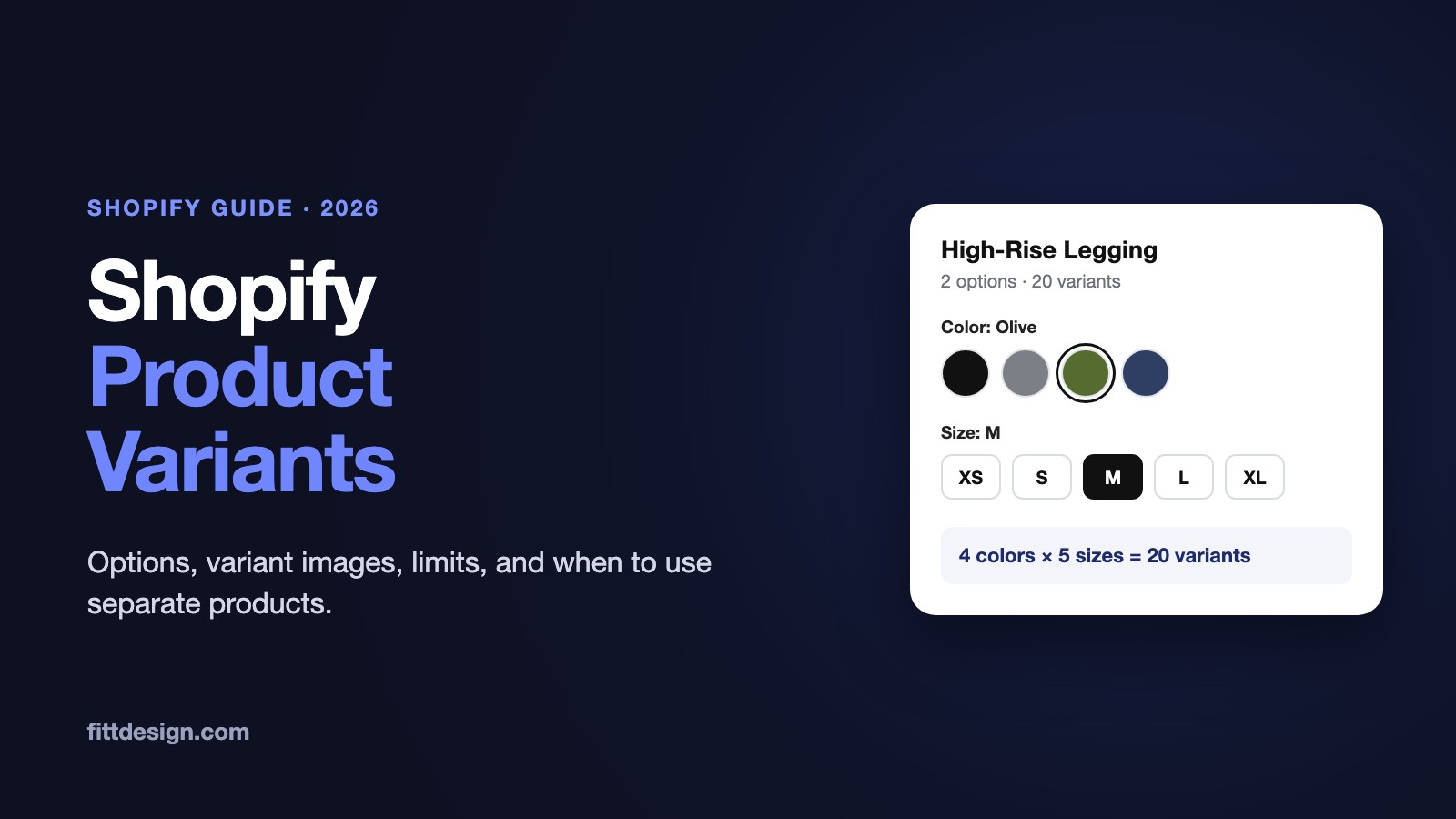
You sell a legging in 4 colors and 5 sizes. In Shopify that can be one product with 20 variants, or four products (one per color) with five sizes each. The choice decides how many photos shoppers scroll through, how many cards show up in your collections, and which pages Google can rank.
This guide covers variants as they work in November 2026: setup in the admin and by CSV, images, limits, URLs and SEO, collection pages, and when a color should be its own product.
The short answer: a variant is one buyable combination of option values, like Black / M. Each Shopify product can have up to 3 options and 2,048 variants, and each variant has its own price, SKU, stock and one image. Add them in the product's Variants section with + Add options like size or color. Use variants for sizes. Make a color its own product when it has its own photos, its own search demand, or needs its own card in collections.
1. Options, option values and variants
Shopify uses three terms, and its Help Center defines them like this:
- Option: a property that comes in more than one version, like Color or Size.
- Option value: one choice within an option, like Black or M.
- Variant: one combination of option values, like Black / M. This is the thing a shopper adds to the cart.
Shopify creates one variant for every combination of values, so the count multiplies:
- Legging in 4 colors (Black, Navy, Olive, Plum) x 5 sizes (XS, S, M, L, XL) = 20 variants.
- Add a third option, Length (Regular, Tall): 4 x 5 x 2 = 40 variants.
- 12 colors x 8 sizes x 3 lengths = 288 variants. That is still well under Shopify's limit, but past the 250 that a theme can loop through at once (see section 6).

A variant's title is its values joined by a slash, for example "Black / M". A product with no options still has one variant behind the scenes, called "Default Title" in CSV files.
What each variant stores
Everything you sell and ship is set per variant, not per product:
| Field | What it's for |
|---|---|
| Price, compare-at price | Selling price, and the crossed-out "was" price for a sale |
| Cost per item | What the item costs you, used for profit reports |
| Charge tax | Whether tax applies |
| SKU | Your stock code, like LEG-BLK-M |
| Barcodes | GTIN, UPC, EAN and so on. The CSV accepts up to 20 per variant |
| Inventory | Track quantity on or off, available stock per location, and whether to keep selling at zero |
| Weight, requires shipping | Used for shipping rates |
| HS code, country/region of origin | Customs data for international orders |
| Image | One image from the product's media |
| Publishing | Which sales channels and catalogs show the variant |
| Metafields | Custom fields you define, like fabric weight |
The title, description, product category, tags, vendor and photo gallery belong to the product, so every variant shares them.
2. How to add variants in Shopify
These are the current desktop steps from Shopify's Adding variants page. A redesigned product details page is rolling out gradually to some stores. If you have it, you edit variants on the product page instead of separate variant pages, and a few labels may differ.
Add options to a product
- From your Shopify admin, go to Products and click the product.
- In the Variants section, click + Add options like size or color.
- In Option name, type
Color. Shoppers see this name. - Under Option values, enter Black, Navy, Olive and Plum.
- Click + Add another option, name it
Size, and enter XS, S, M, L and XL. You can have up to 3 options per product. - Click Done, then Save. Shopify creates all 20 variants.
Now set each variant's price, SKU, stock and image. If your product has a category, Shopify may offer a category metafield like Color when you add the option. Connecting it gives you swatches and filters later. See section 7.
Add a new color to an existing product
- In the Variants section, click Edit next to the Color option.
- Type the new value, like Burgundy, in the Add another value field.
- Click Done, then Save.
This creates the new color in every size at once: 5 new variants here.
Add one variant by hand
Click Add variant in the Variants section and type the option values. At least one value must be new, and Shopify won't save an exact duplicate. This creates only that one combination, which is useful when, say, Burgundy only comes in S and M.
Duplicate variants
- One variant: click the variant, click Duplicate, change at least one option value, and save. The copy has the same details as the original.
- A whole color: select the variants to copy, for example all five Plum sizes, open the actions menu, and under Duplicate variants pick the "...in another Option" choice. In the Create duplicate variants dialog, enter the new value (Burgundy), choose which details to copy, and click Duplicate. Combinations that already exist are skipped.
To copy a whole product, for example to start a new color as its own product, use More actions > Duplicate product. Shopify copies everything except 3D models and videos (source).
3. Editing many variants at once
Shopify's Editing variants page gives three ways to change variants.
On the product page
In the Variants list you can change a variant's image, price and available stock without opening it. Variants are grouped by the first option. Editing the price or image on a group row, like "Black", changes every variant in that group. Stock can't be edited on the group row: open the group, then pick a location from All locations first.
The list also has a search and filter, so you can show only, say, Plum in XS.
The bulk editor
For everything else, tick the variants you want (or the top checkbox for all of them) and click Bulk edit. Each row is a variant. Click Columns to add fields such as compare-at price, cost, weight, barcode or Track quantity. This is also where you edit variant metafields in bulk, since the product CSV doesn't carry them.
Reorder, rename and delete
- Reorder options: drag the ⋮⋮ handle next to the option. The order here is the order shoppers see.
- Reorder values: click Edit next to the option, then drag the ⋮⋮ handles. Put sizes in size order (XS to XL), not alphabetical.
- Rename an option: click Edit next to it and type the new name.
- Add an option later: click + Add another option and enter a default value. Every existing variant gets that value.
- Delete a value: click Edit, then the trash icon next to the value. This deletes every variant with that value.
- Delete one variant: click the variant, then Delete variant twice.
Hide a variant instead of deleting it
You can now publish or unpublish single variants per sales channel and catalog. A discontinued color stays in your admin with its sales history, and you can bring it back later. Two rules to know: you can't schedule a publish date for a single variant, and if every variant is unpublished from a channel, the whole product disappears from it.
4. Adding variants with a CSV file
For a catalog of leggings, a CSV import is faster than clicking. Shopify's product CSV page explains the format. The idea: one row per variant, all sharing the same URL handle.
- The first row holds the product details (Title, Description, Vendor, Tags), the option names, and the first variant.
- Each following row repeats the URL handle, leaves Title, Description, Vendor and Tags blank, and fills in that variant's option values and details.
- Extra gallery images go on rows with just the URL handle, a Product image URL and an Image position.
Here are the first rows of the legging, with Color as option 1:
| URL handle | Title | Option1 name | Option1 value | Option2 name | Option2 value | SKU | Price | Inventory tracker | Variant image URL |
|---|---|---|---|---|---|---|---|---|---|
| studio-legging | Studio Legging | Color | Black | Size | XS | LEG-BLK-XS | 58.00 | shopify | …/legging-black.jpg |
| studio-legging | Black | S | LEG-BLK-S | 58.00 | shopify | …/legging-black.jpg | |||
| studio-legging | Navy | XS | LEG-NVY-XS | 58.00 | shopify | …/legging-navy.jpg |
The other variant columns that matter: Compare-at price, Cost per item, Inventory quantity (single-location stores only; with several locations, use the inventory CSV), Continue selling when out of stock (deny or continue), and Weight value (grams). If an option is connected to a category metafield, its "Linked To" column holds the metafield, for example product.metafields.shopify.color-pattern for Color, and the value column holds the metaobject's handle instead of its display name.
To import: go to Products, click Import, then Add file. To update products that already exist, tick Overwrite products with matching handles. Click Upload and continue, check the preview, then Import products. The file can't be larger than 15 MB (source).
Three traps, all from Shopify's own warnings:
- Missing option columns delete your variants. If you overwrite a product without the Option1 name and Option1 value columns, Shopify creates a new default variant and deletes the existing ones. Keep the option columns in any file that touches SKUs, prices or weights.
- Changing an option value creates a new variant ID. Renaming "Navy" to "Midnight" in the CSV deletes the old variants and creates new ones. Anything that stored the old IDs, like apps, reviews or saved links, can break. Rename in the admin instead.
- Variant metafields aren't in the product CSV. Use the bulk editor for those.
5. Variant images
Shopify's rule is short: each variant gets one image, it must be an image (no video or 3D), and it comes from the product's own media, which can hold up to 250 items.
Assign images
- One variant: in the Variants section, click the image icon next to the variant, pick an existing image or click Add image, then Done and Save.
- Many at once: tick the variants, for example all five Black sizes, open the actions menu, click Add images (or Edit images), pick the image, then Done and Save. The group row for "Black" works too.
When a shopper picks a color, the theme jumps to that variant's image. That only works if you set one, which is why every color variant needs an image even if sizes share it.
Showing only the selected color's photos
Shopify's free themes have a setting for this. We checked the current source code of both:
- Dawn (16.1.1): in the Product information section, tick Hide other variant media after one is selected.
- Horizon (4.5.0): in the Product media block, tick Hide unselected variant media.
Both hide only images that are assigned to another variant. Images that aren't assigned to any variant stay visible for every color. So if each legging color has 5 photos (front, back, side, detail, on model), you can assign one per color, and the other 16 photos show up whichever color is selected. That's the "multiple images per variant" problem.
The real options for several photos per color
- Order the gallery by color. This is Shopify's own advice: put each color's photos together and assign the first one to the variant. Selecting Olive jumps to the Olive photos, and the shopper scrolls on from there. It's free, but every shopper can still scroll into the other colors.
- Use a theme or app that groups images by color. Some third-party themes and apps can show a separate set of photos per color. Test it on your own theme before you rely on it.
- Make each color its own product. Each color gets its own gallery, so there's nothing to filter. Then link the colors back together with swatches so they still look like one product. Shopify's Help Center suggests its Combined Listings app for this, which needs a Plus or enterprise plan. On any plan, FD Combined Listings & Variant links separate products with color or image swatches without changing the products.
If each color has more than one or two photos, option 3 is usually cleaner. Section 10 covers when it's worth it.
6. Variant limits in brief
From Shopify's Help Center and developer docs, as of November 2026:
- 2,048 variants per product. Raised from 100 on October 15, 2025.
- 3 options per product. This hasn't changed.
- 250 media items per product, and one image per variant.
- 250 variants in theme code. Liquid's
product.variantsreturns at most 250 variants. A theme that builds its picker by looping over every variant breaks quietly past that. Shopify points theme developers to Dawn's variant picker as an example that doesn't need the full list. - Some things still stop at 100. Shopify warns that some third-party themes, apps and sales channels don't support more than 100 variants, and that the Stocky app and the legacy Order Printer app don't.
- Import rate limit. Stores with 500,000 or more variants can add 10,000 new variants a day by app or CSV. Plus stores are exempt.
For what to do when you hit these, including going past 3 options, see Shopify Variant Limit: 2,048 Variants, 3 Options, and How to Get Around Them.
7. Connected options: category metafields, swatches and filters
When a product has a category, like Leggings, Shopify offers category metafields such as Color and Size. You can connect a variant option to one. The option values then come from shared entries instead of typed text.
What that gives you:
- One name everywhere. Edit an entry once, for example rename Black to Graphite under Content > Metaobjects, and it changes on every product that uses it.
- Swatches. Color entries carry a color or image. Themes that support swatches, like Dawn and Horizon, show them in the variant picker, and Horizon can show them on product cards too.
- Visual filters. In the Search & Discovery app, a Color filter of type Category metafield can show each value as a swatch.
To connect an existing option, click it, click the dynamic source icon, and pick the category metafield. In the Shopify app, a dialog warns that the existing values will be cleared, so check them after saving. The full setup, with and without an app, is in Shopify Color Swatches: How to Add Them, With or Without an App.
8. Variant URLs, SEO and Google Shopping
Every variant has a URL, but not its own page
A variant URL is the product URL plus a parameter: /products/studio-legging?variant=1234567890. Shopify's Liquid docs say the variant URL parameter decides which variant is selected when the page loads. Share or advertise that link and the shopper lands on Olive, size M, with the right price and image.
For search engines, it's the same page. Shopify's canonical tag removes URL parameters, so every ?variant= URL points back to /products/studio-legging (Shopify's explanation; we confirmed it on Shopify's Dawn demo store). That's correct behavior. It means:
- The product has one title, one meta description and one indexed page for all colors.
- A search for "olive leggings" can find the product page, but it can't find an Olive page, because there isn't one.
In Dawn and Horizon, the product's structured data comes from Shopify's structured_data filter, which outputs a schema.org ProductGroup when the product has variants. So Google sees one product with its variants listed underneath.
Google Shopping and product feeds
Shopping works the other way round. Google asks for each variant as its own item, with its own ID and landing page, grouped by a shared item_group_id. The landing page has to match the variant's details, like its color and size. The ?variant= URL is what makes this work on Shopify: it opens the page with that variant selected.
From Shopify's Google & YouTube channel requirements:
- Option names and values must be in English to sync.
- GTINs go in each variant's details. Without a GTIN, you add an MPN and brand in the channel.
- How many variants Google lets you sync depends on your Merchant Center account type.
Set an image on every color variant, so the photo in the ad matches the color the shopper lands on.
9. Variants on collection pages and in search
This is the most common surprise. On a collection page or in search results, Shopify shows one card per product, not one per variant. The legging appears once, with one image, however many colors it has. Neither Dawn nor Horizon has a setting that turns each color into its own card.
Shopify says so directly: "If you want specific product variants to display in collections and search result product grids, instead of only the main product listing being displayed, then consider using combined listings" (Adding variants).
What Shopify does natively
- Filters point to the right variant. With Search & Discovery, "Product variant filters will link to more relevant variants on search results and collection pages" (source). A shopper who filters by Olive gets a card that opens the Olive variant.
- Variant-level collections (new since July 16, 2026). A collection can now have a Variants source, so you can build a "Black leggings" collection that holds only the black variants. Its filters then show the price range, swatches and options of only those variants. To set it up, open the collection under Products > Collections and change a source's drop-down from Products to Variants. Limits: 100 collections with variant sources per store, 10 sources per collection, and 60 condition values per source (source). This narrows which variants a collection holds. It doesn't split one product into several cards, because collections still list products.
- Swatches on cards. Horizon's product card has a Swatches block. It shows the colors of the one product, as long as the option values have swatch data (section 7).
The real options for one card per color
- Separate products. Make each color its own product. Each gets its own card, URL, title and photos. The catch: the shopper on Olive doesn't see that Black and Navy exist, unless you link them.
- Shopify Combined Listings (Plus and enterprise only). Links separate products under a parent. Child products keep appearing in collections, so each color keeps its card. Note that Search & Discovery filter results leave the child products out. Details are in our Shopify combined listings guide.
- An app. On any plan, FD Combined Listings & Variant links separate products with swatches on product pages and collection cards. Each color stays a normal product, so filters keep working. Other apps instead display the variants of one product as separate cards without splitting it. We compared the main Shopify combined listings apps on price and features.
10. Variants or separate products: how to decide
Variants are simpler to manage: one product, one set of reviews, one page. Separate products cost more admin work but give each one its own URL, photos and card. Use these rules:
| Situation | Use | Why |
|---|---|---|
| Sizes | Variants | Same photos, nobody searches for "legging size M" |
| Colors that share photos, or only differ by a swatch | Variants | A separate page would be a copy |
| Colors with their own photo sets | Separate products, linked with swatches | Each gallery shows only that color |
| Colors people search for by name ("olive leggings") | Separate products, linked with swatches | Each color gets its own title and URL that can rank |
| Each color needs its own card in collections | Separate products, linked with swatches | Shopify shows one card per product |
| Different fabric, price range, description or reviews | Separate products | Variants share one description and one set of reviews |
| A 4th option (Color, Size, Length, Fabric) | Split on one option, like Fabric, and link the products | 3 options per product is a hard limit |
| Free text, like a monogram | Not variants | Use line item properties or a product options app |
Most apparel stores end up with the mix: sizes as variants, colors as separate products linked with swatches. The legging becomes 4 products (one per color) with 5 size variants each.
A separate product only helps SEO if it's actually different. Put the color in the title and handle ("Studio Legging - Olive", /products/studio-legging-olive), use that color's photos, and change at least the first paragraph of the description.
To split an existing product, duplicate it once per color with More actions > Duplicate product and delete the other colors' variants from each copy, or export it to CSV and edit the handles and titles. FD Combined Listings includes a split tool that turns the variants of one product into separate products, and the best combined listings apps roundup covers the other ways to link them.
11. Common mistakes and how to fix them
- Inventory tracking is off. An untracked variant counts as available at any quantity, so a sold-out size never shows as sold out and keeps taking orders. Fix: open the variant and turn on Track quantity in the Inventory section, or add the column in the bulk editor and set it for all variants at once.
- Options in the wrong order. With Size first, the admin groups variants by size and the picker asks for size before color. Fix: drag Color above Size with the ⋮⋮ handle, and put size values in size order.
- Different names for the same thing. "Color" on one product and "Colour" on another, or "Navy" and "navy blue". Filters are built from option names and values, and Shopify's filter guide says to make sure "option names match exactly across products". Fix: rename them to match, group values in Search & Discovery, or connect the option to the Color category metafield so names come from one list.
- No variant images. Picking a color doesn't change the photo, and the theme's hide-variant-media setting has nothing to work with. Fix: select each color's variants and use Add images. Extra photos per color need one of the options in section 5.
- Combinations you don't make. If Plum doesn't come in XS, a 4 x 5 setup still creates Plum / XS. Fix: delete that variant, or unpublish it.
- Deleting variants that will return. Deleting removes it from your admin. Fix: unpublish it from your channels instead. Shopify recommends this when you want to keep a variant for its history or sell it again later.
- A CSV import that wipes variants. See the three traps in section 4. Fix: keep the option columns in every file, and rename values in the admin.
- A theme or app that stops at 100 or 250 variants. Fix: test one high-variant product in your theme, cart and every connected app before you load the whole catalog.
Frequently asked questions
How many variants can a Shopify product have?
Up to 2,048 variants and 3 options per product. The limit was 100 variants until October 15, 2025. Some third-party themes and apps still only handle 100.
Can each Shopify variant have its own images?
Each variant can have one image. For more photos per color, order the gallery by color, use a theme that groups images, or make each color its own product with its own gallery.
How do I show variants as separate products on collection pages?
Shopify shows one card per product and has no setting to change that. Make each color its own product and link them with swatches, using Shopify's Combined Listings app on Plus or an app on other plans.
Do Shopify variants have their own URL?
Yes, the product URL with ?variant= and the variant ID, which opens the page with that variant selected. Its canonical tag points to the main product URL, so search engines treat it as the same page.
What's the difference between an option and a variant?
An option is a choice like Color or Size. A variant is one combination of values, like Black / M, with its own price, SKU and stock.
How do I add a new color to a product that already has variants?
In the Variants section, click Edit next to the Color option, type the new color in Add another value, click Done and Save. Shopify creates the new color in every size.
Can a Shopify product have more than 3 options?
Not natively. You can split one option into separate linked products, or collect extra choices with a product options app. Our variant limit guide compares the ways.
Try it on your store
If your colors need their own photos, pages or collection cards, FD Combined Listings & Variant links them back together with swatches on product pages and collection cards, on every Shopify plan. It's rated 5.0 on the Shopify App Store, has the Built for Shopify badge, and the free plan covers 10 groups.
Install FD Combined Listings for free | See how it works
About FittDesign
FittDesign is a design, manufacturing and ecommerce studio for apparel brands. We also build Shopify apps, including FD Combined Listings & Variant.