

Series What our ecommerce clients ask us most · Part 9 of 9
- Shopify Ecommerce Checkout Optimization: 6 Strategies to Increase Conversions and AOV for your Shopify Store
- Shopify Tools and Apps That Turn Checkout Friction Into More Sales
- GA4 for Shopify: How to Set It Up, Test It, and Avoid Duplicate Tracking (Beginner's Guide)
- Shopify: Increase Product Page Conversions with Product Groups Swatches
- Shopify Combined Listings: The Complete Guide (2026)
- Best Shopify Combined Listings Apps in 2026: 11 Apps Compared on Price and Features
- Shopify Product Variants: The Complete Guide (2026)
- Shopify Variant Limit: 2,048 Variants, 3 Options, and How to Get Around Them
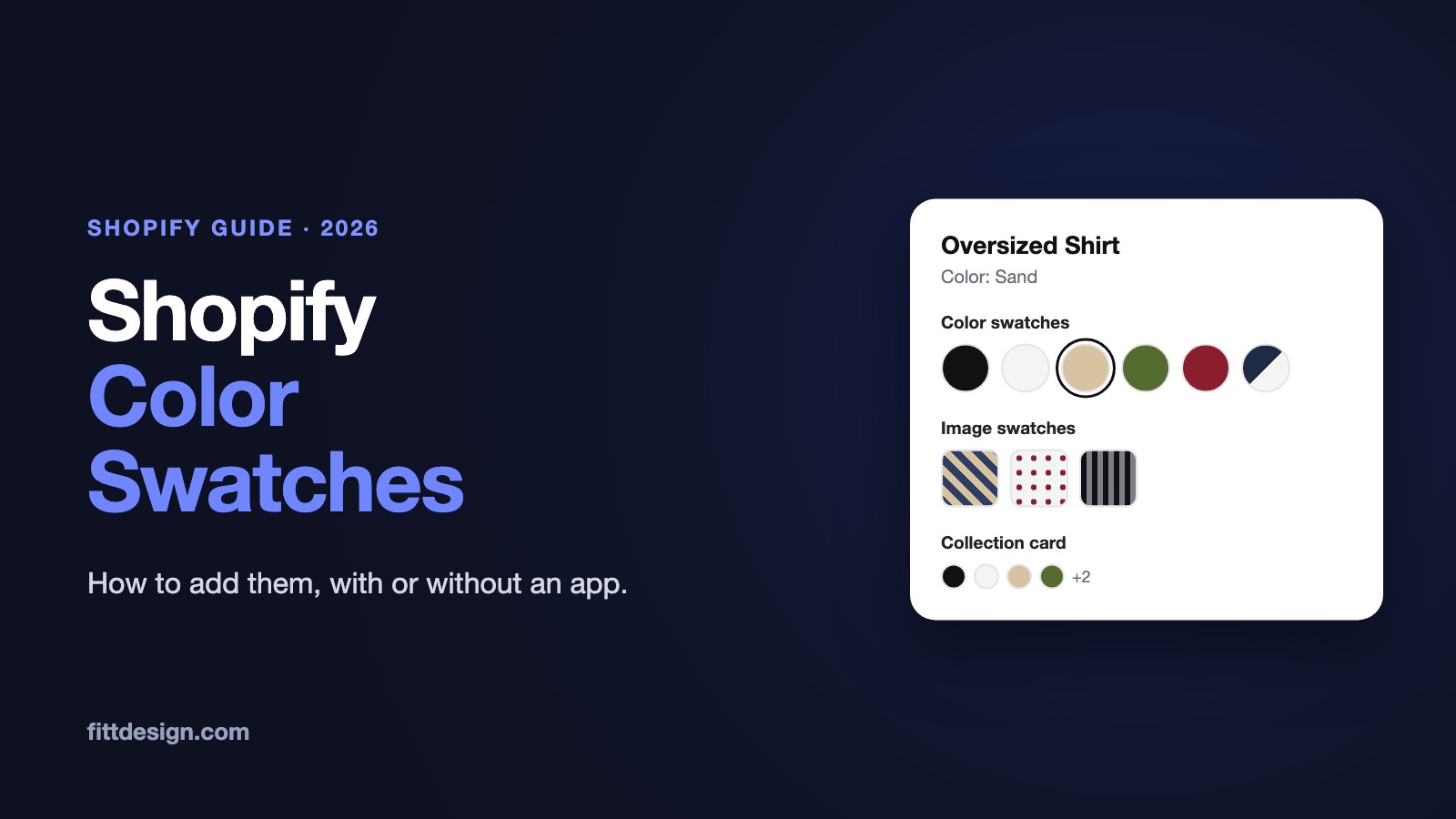
- Shopify Color Swatches: How to Add Them, With or Without an App
You sell a shirt in Black, Grey, Olive and Navy Stripe. Shoppers want to see those colors, not read a dropdown of names. Shopify has built-in color swatches, but they only appear when four things line up: the product's category, its color entries, a Color option connected to them, and a theme that draws them.
This guide shows how native swatches work, the exact admin steps to set them up, which themes show them where, how to get them into your filters, and when you need an app instead.
The short answer: give the product a category that has a Color attribute, connect its Color option to that category metafield, and set a hex code or image on each color entry. Any theme that supports native swatches, such as Dawn and the Horizon family, then shows them on the product page, and Horizon also shows them on collection cards. You need an app for swatches that link separate products, for card swatches in a theme without them, or for swatch styles your theme doesn't offer.
1. How Shopify's native swatches work
A native swatch is not a theme setting or an image you upload to the theme. It's data on the product, built from four pieces:
- A product category. Picked from Shopify's Standard Product Taxonomy, for example Apparel & Accessories > Clothing > Clothing Tops > Shirts. The category comes with a set of category metafields, one of which is Color.
- Color entries. Each color (Black, Olive, Navy Stripe) is a metaobject entry with a label, a hex color, an optional image, and a base color that maps it to Shopify's taxonomy (Burgundy maps to Red, for example). Entries are shared across your store: edit one and every product using it updates.
- A connected option. The product's Color variant option is connected to the Color category metafield, so each option value points to an entry instead of being plain text. Shopify's developer docs call this a linked option.
- A theme that reads it. In Liquid, each option value gets a
swatchwith acolorand animage. The theme decides how to draw it.
The Help Center is strict about the third piece: "Swatches can only be used with a variant connected to color category metafield and related color entries" (Shopify Help Center). An option you typed by hand called "Color" doesn't get native swatches, however it's named.
Color isn't the only attribute that works. Shopify lists more than 50 category metafields that support swatches, including Band color, Frame color, Footwear color and Lens color, depending on the category.

2. How to add color swatches in Shopify without an app
The example: an oversized shirt in Black, Grey, Olive and Navy Stripe, sizes S to XL. The steps follow Shopify's swatch tutorial and use the current admin labels.
Step 1: Set the product category
- From your Shopify admin, go to Products and open the shirt.
- In the Category field, search for or click through to Apparel & Accessories > Clothing > Clothing Tops > Shirts. Shopify may already suggest a category. Check it, because a wrong category can mean no Color metafield.
- Click Save. A Category metafields section appears with attributes like Color, Size, Neckline and Sleeve length type.
Step 2: Add the color option from the metafield
- In the Variants section, click + Add options like size or color.
- Select the Color category metafield from the list. The option values fill in from the color entries you already have.
- Pick the colors you sell. Category metafields come with default entries for common colors, such as Black.
- For a color that isn't there (Olive, Navy Stripe), click Edit, then Add new entry. Fill in the label, set the color or image, pick the base color, and click Save.
- Add the Size option as a normal option, then click Save on the product.
Shopify creates the variants for every color and size pair. For more on options and variant limits, see our Shopify product variants guide.
Step 2b: Connect an option that already exists
If your products already have a typed Color option, convert them one at a time (steps from Add variants with metafields):
- Set the product's category first (Step 1).
- In the Variants section, click the existing Color option, click the dynamic source icon (the small database icon, ⛁), and choose the Color category metafield.
- Pick the entries for your colors, then click Save.
In the Shopify app, a dialog warns that the existing values will be cleared, so try it on one product and check its variants before you do the rest. To reverse it, click Edit next to the option, click the metafield name, then Disconnect; the option goes back to a custom one. For many products at once, developers can create linked options through the GraphQL Admin API with a linkedMetafield.
Step 3: Turn swatches on in your theme
- From your Shopify admin, go to Online Store and click Edit theme.
- Open a product template and preview the shirt.
- Click the Variant picker block. In current Shopify themes swatches are on by default: Dawn's Swatch setting offers Circle, Square or None, and Horizon has a Swatches checkbox.
- Click Save.
Open the product on your storefront. You should see a round swatch for each color, with Navy Stripe showing its image.
3. Image swatches, prints and two-tone colors
A hex code covers solid colors. For a stripe, a print, heather, denim wash or a two-tone, put an image on the color entry instead:
- From your Shopify admin, go to Content > Metaobjects.
- Click the Color definition, then the entry (Navy Stripe).
- Upload a small, square crop of the fabric to the image field. Set the base color and base pattern so filters can group it.
- Click Save.
Shopify uses this method itself: the "Multicolor" base color has no hex code, so its filter docs tell you to upload an image to the entry. For a two-tone shirt, use an image split half and half. The Liquid swatch has a single color, so a hex can only ever draw one.
If an entry has both a hex and an image, expect the image to win. Dawn checks for a swatch image before the color, Horizon's swatch code does the same, and Shopify notes that "themes will often prioritize displaying a swatch's image over its color."
Changing a color's hex
Go to Content > Metaobjects, open the Color definition, click the entry, change the color, and click Save. You can also edit it from any product: click the option value, then the entry, then Edit.
The change applies "everywhere that the entry is used" (Shopify Help Center). That's the point of entries, and also the trap: if your Black tee is jet black and your Black hoodie is washed black, editing "Black" changes both. Make a second entry ("Washed Black") with its own hex instead.
Variant photos as swatches
Horizon themes have a third option. In Theme settings > Swatches, turn on Variant images and the swatch shows each variant's photo instead of the entry's color or image. That's handy when the hex never quite matches the fabric, but it needs a clean, consistent photo assigned to every variant.
4. Which themes show native swatches, and where
Native swatches only show if the theme supports them, and each theme decides where. Checked against Shopify's theme code and Theme Store listings on November 13, 2026:
| Theme | Product page | Collection cards | Filters |
|---|---|---|---|
| Dawn (current version 16.1.1) | Yes, since 13.0.0 | No | Yes, since 14.0.0 |
| Horizon family: Horizon, Atelier, Dwell, Fabric, Heritage, Pitch, Ritual, Savor, Tinker, Vessel | Yes | Yes, Swatches block in the product card | Yes |
| Paid Theme Store themes | Depends on the theme and its version. Check its docs for "native swatches" or "category metafields". | ||
| Vintage (pre-Online Store 2.0) themes | No native support. Theme code or an app. | ||
Dawn added the swatch picker in version 13.0.0 (January 2024), switched filter swatches to the swatch API in 14.0.0, and added combined listings in 15.0.0. Shopify's Help Center says you need "the latest version" of Dawn for taxonomy-powered swatches, so update before you troubleshoot anything else.
Shopify's other free themes from the same generation, such as Refresh, Sense, Craft and Studio, are on the same version, 16.1.1, and list Color swatches and Swatch filters on the Theme Store. Check their product cards yourself before you rely on card swatches.
Dawn settings
- Product page: Variant picker block > Style (Dropdown or Pills) and Swatch (Circle, Square or None). With Pills, colors show as swatches. With Dropdown, the selected color's swatch shows in the dropdown. None turns swatches off.
- Collection cards: not available. Adding them means editing
card-product.liquidor using an app. - Filters: no theme setting. A Color filter shows swatches when you set it up that way in Search & Discovery (section 5).
Horizon settings
- Product page: Variant picker block > Style (Dropdowns or Buttons) and a Swatches checkbox, on by default.
- Swatch look: Theme settings > Swatches: Variant images, width, height, border radius and borders (30 x 30 px and fully round by default).
- Collection cards: the product card in the collection template includes a Swatches block by default, with alignment and padding settings. It only renders for products that have swatches. If you deleted it, add it back inside the product card.
- Filters: the Filters block has a Text labels for swatches checkbox, off by default.
Paid themes with their own swatch systems
Many paid themes had swatches long before Shopify did, so they often support two methods. Maestrooo's documentation is a clear example (Configuring color swatches):
- Native swatches in Prestige v9+, Impact v5+, Focal v11+ and Warehouse v5+, set up as in section 2.
- The older method for earlier versions: a Color swatch theme setting where you map one color per line as
name:value, for exampleOlive:#556b2forNavy Stripe:navy-stripe.jpgfor an image uploaded to Files. Swatches only appear on an option named Color or Colour unless you change that wording in the theme's content. On the product page you set the Variant picker's Color selector type to Color swatch. For collection cards, set Theme settings > Product card > Color display mode to Swatch.
If your theme's docs mention both methods, use the native one: entries are shared across products, they feed your filters, and any theme with native support reads them.
5. Color swatches in your collection filters
Since September 2024, the same color entries can power a Color filter with swatches. Steps from Shopify's Search & Discovery docs:
- From your Shopify admin, go to Apps > Search & Discovery and click Filters.
- Click Add filter, click the Source field and select Color with the type Category metafield.
- Click Manage values and choose grouping. Automatic groups values under their base color, so Light red, Burgundy and Ruby all show as Red. Manual lets you build groups yourself.
- Select Include swatch. Also select Use images when available if you use image entries.
- Click Save.
Points to know:
- The theme must support the filter value API. Dawn 14+ and Horizon do.
- If you already have a filter on the old text Color option, Shopify says to remove it and add the category metafield filter instead once your products are migrated.
- A filter shows at most 100 values on the storefront. Grouping (Automatic grouping is easiest) keeps a big color list under that.
- Collections with more than 5,000 products don't show filters at all.
6. Swatches without metafields: theme code
If you can't use categories (a vintage theme, or a catalog you won't migrate), the old method still works: the theme reads the option value's name and maps it to a color or an image file. A minimal Liquid version for a product page:
{%- for option in product.options_with_values -%}
  {%- if option.name == 'Color' -%}
    {%- for value in option.values -%}
      {%- assign handle = value.name | handleize -%}
      <span class="swatch swatch--{{ handle }}"
        style="background-image: url({{ handle | append: '.png' | file_url }})"
        title="{{ value.name | escape }}"></span>
    {%- endfor -%}
  {%- endif -%}
{%- endfor -%}
Upload navy-stripe.png and the rest to Content > Files, or drop the image and set colors in CSS (.swatch--olive { background-color: #556b2f; }). The name of each file or class has to match the handleized value exactly, so "Navy Stripe" needs navy-stripe.
This draws the swatches. Making them select the variant, mark sold-out colors and update the photo means wiring them into your theme's variant picker JavaScript, which is the larger part of the job. If your theme supports native swatches, use those.
7. Swatches that link separate products
Native swatches switch between variants of one product. They can't link "Shirt - Black" and "Shirt - Olive" when those are two products. Many apparel stores split colors into separate products for SEO, photos or the 3-option limit, and then lose the color links.
There are two ways to get them back:
- Shopify's Combined Listings app. It links up to 60 products under a parent product, and its options can use the same Color category metafield, so the theme can draw them as swatches. It's for Plus and enterprise plans only (Plus starts at $2,300 a month), and free themes need version 15.0.0 or later. Our combined listings guide covers it in full.
- An app, on any plan. FD Combined Listings & Variant (our app) links separate products with swatches on the product page and collection cards, without creating a parent product or changing your products. We compared the main Shopify combined listings apps on price and features.
For why linking split products matters on the product page, see product group swatches and conversions.
8. Native swatches or an app
| Your situation | Use |
|---|---|
| Colors are variants of one product, theme is Dawn-based 13+ or Horizon | Native swatches |
| You want color swatches in collection filters | Native entries + Search & Discovery |
| Swatches on collection cards, theme is Horizon | Native (Swatches block) |
| Swatches on collection cards, theme is Dawn or another theme without them | Theme code, or an app that adds card swatches |
| Vintage theme, or a paid theme without native support | The theme's own swatch method, theme code, or an app |
| Each color is its own product, you're on Plus | Shopify Combined Listings, or an app |
| Each color is its own product, you're not on Plus | An app |
| Styles your theme lacks: pill, polaroid, slider, two-color split | An app |
| Control over sold-out colors (hide, fade, cross out, sort last) | Your theme's built-in handling, or an app |
If the colors are variants and your theme supports native swatches, you don't need an app. Apps earn their place when the colors live on separate products, or when the theme can't show swatches where you want them. FD Combined Listings covers both: color, two-color, image, pill, polaroid, slider and dropdown styles on product pages and collection cards, on every theme.
9. Common problems and fixes
The option shows as buttons or text, not swatches
The option isn't connected to the Color category metafield. Check the product has a category with a Color attribute, then connect the option (Step 2b). A typed "Color" option doesn't count.
The swatch is grey, empty or white
The entry has no color and no image. Liquid returns no swatch "if there is no saved color or image content" (shopify.dev). Open the entry in Content > Metaobjects and set one. If the swatch really is white, the problem is contrast: add or darken the swatch border (Horizon: Theme settings > Swatches > Borders).
The swatch color doesn't match the entry's hex
Three usual causes: the entry also has an image, which most themes show first; Horizon's Variant images setting is on, so you're seeing the variant photo; or the product uses a different entry with the same name. Check which entry the option value points to.
Changing one color changed it on other products
Entries are shared. Create a separate entry for the shade that differs, and connect only that product to it.
No swatches anywhere on the product page
Check the theme: Dawn's Swatch setting set to None, Horizon's Swatches checkbox off, or an old theme version. Update Dawn to the latest version, which Shopify requires for taxonomy swatches.
Swatches don't show on collection pages
Dawn doesn't have card swatches. In Horizon, check the product card still has its Swatches block. In paid themes, look for a product card or product grid setting. If your theme has none, you need code or an app.
Too many colors on a card
Horizon shows the swatches that fit and a "+N" count for the rest. Other themes may wrap or overflow. Maestrooo suggests turning card swatches off for products with 20 or more colors. In filters, group colors so you stay under 100 values.
Swatches aren't accessible
Color alone shouldn't carry the meaning. Show the selected color's name as text next to the picker, keep a tooltip or label on each swatch, and give swatches a border with at least 3:1 contrast against the background, as WCAG's non-text contrast rule asks. In Horizon filters, turn on Text labels for swatches.
Frequently asked questions
Does Shopify have built-in color swatches?
Yes. Connect a product's Color option to the Color category metafield and set a hex or image on each color entry. Themes that support native swatches, such as Dawn and the Horizon family, show them without an app.
How do I add color swatches in Shopify without an app?
Set the product category, add the Color option from the Color category metafield, set a hex or image on each color entry, and check the Variant picker block in your theme. On older themes, use the theme's own swatch setting or custom code.
Why are my Shopify swatches not showing?
Usually the option isn't connected to the Color category metafield, the color entry has no hex or image, swatches are turned off in the Variant picker block, or the theme is too old. Check those four in that order.
How do I add swatches to the collection page in Shopify?
Horizon-family themes include a Swatches block in the product card. Dawn has no card swatches, so you need theme code or an app. Paid themes often have a product card setting for it.
Can I use an image or pattern as a swatch?
Yes. Upload an image to the color entry in Content > Metaobjects. Most themes show the image instead of the hex when both are set, which is also how you make two-tone and printed swatches.
Can Shopify swatches link to different products?
Not with native swatches alone, which switch variants of one product. Shopify's Combined Listings app does it on Plus, and apps do it on every plan. See combined listings apps compared.
Do I need Shopify Plus for color swatches?
No. Shopify's swatch setup has no plan requirement. Plus is only needed for Shopify's Combined Listings app, which links separate products.
Try it on your store
If your colors are separate products, or your theme doesn't show swatches on collection cards, FD Combined Listings & Variant adds them on every Shopify plan and theme. It's rated 5.0 on the Shopify App Store, has the Built for Shopify badge, and the free plan covers 10 groups.
Install FD Combined Listings for free | See what's new
About FittDesign
FittDesign is a design, manufacturing and ecommerce studio for apparel brands. We also build Shopify apps, including FD Combined Listings & Variant.